Obsidian Tasks Series, Part 10 - Works Well With Tasks
Welcome back to this mini series on the Obsidian Tasks Community Plugin. My intention with this series is to help you learn the functionality of the Obsidian Tasks Community Plugin so you can build a task management system in Obsidian that works for you. There is a YouTube video to accompany each article in this series, so feel free to check that out. The videos and articles roughly parallel one another.
This is the tenth and final article in the series! 🎉🎈🍾
Here’s everything we’ve covered:
Works Well with Obsidian Tasks Community Plugin ← You Are Here
We close out the series by focusing on other tools that may make your experience with Tasks even better. While the Tasks Community Plugin is wonderfully powerful on its own, it can be even more useful when you pair it thoughtfully with other Obsidian community plugins and a few other tools.
This is not an exhaustive list of every plugin that could possibly connect to Obsidian Tasks. That list isn’t possible because there are a myriad of ways people combine tasks with the use of other tools. I’m just going to give you a few that I’ve found really useful.
And, as with everything else in this series, I want to encourage you not to treat this as a checklist of things you “should” add.
You do not need all of these. What you want is the right combination for your workflow.
So, let’s dig in.
1. Templates and Templater
While I’m probably going to take a break from big long series of videos for a while (since this one took me nearly a year to finally make time to complete), another series I will do at some point is on the Templates and Templater community plugins.
For this section, I’m working in my actual vault rather than our demo vault, so you can see my real Templater setup and a few of my favorite Templater tricks.
First, I am exclusively using Templater so I’ve disabled the Templates Core Plugin in Obsidian Settings by going to Settings > Core Plugins > and toggling Templates off.
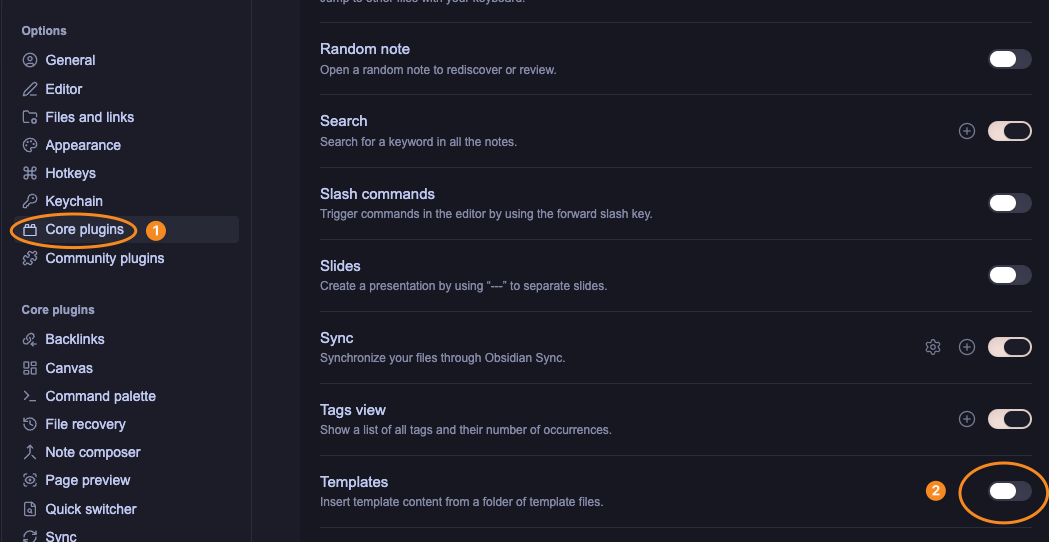
Obsidian showing the Core Templates Plugin toggled off
Next, I installed and enabled the Templater Community Plugin. I make use of folder templates and a few other things that are beyond the scope of this video, but I’ll cover them when I do a series on Templates and Templater. If you want to know about them now, check out the series I did a few years ago on these tools. The series held up really, really well - but there are even more fun tricks you can do now!
I have 40 dedicated templates in my templates folder. And, because I’m using Claude Cowork to automate a lot of what I do in my Obsidian vault now, there are probably another 10-20 template variations embedded in the Obsidian vault now through those templates.
In the video, I walk through a few of my favorite Templater tricks in my own vault.
2. Text Expansion Tools
Another thing that can work very well with Obsidian Tasks is a text expansion tool.
I’ve mentioned this a few times in the series because it is one of the ways I like to reduce friction in repetitive workflows. And, the biggest benefit is that it speeds up your workflow in EVERY tool you use - not just Obsidian.
As I’ve mentioned throughout the series, I’m a huge fan of Typinator (affiliate link) and since I started this series they have a new version. I’m actually going to do a whole video on how I use Typinator (affiliate link) coming up soon, so make sure you subscribe to the channel on YouTube to get notified when that is available.
3. Voice Tools Like Wispr Flow and Whisper Memos
I’m a fast typist, but I still speak faster than I type. I’ve begun using two tools regularly to dictate rather than type text on my computer. I use these all over Obsidian so they aren’t specific to the Obsidian Tasks Community Plugin. In fact, this article you are reading was first drafted by voice dictation. While I still have to go in and clean it up after it is done drafting, I get a really good first draft that I can generate straight out of my head, specifically using Wispr Flow (affiliate link).
A little later in this article, I’ll talk about TaskForge, which is a mobile app you can use with Obsidian Tasks. I don’t currently use it, although I have and it works well. Instead, right now I use a different voice tool called Whisper Memos. This sends anything that I record, either using my Apple Watch complication or using the Whisper Memos app on my phone, as a transcribed piece of text to my email. I can then decide what to do with it from email. And, more often than not now, Claude actually does the deciding based on pre-set rules and skills I’ve established.
That might seem unnecessarily complicated to you or just another step you don’t want to deal with, and that’s okay. These are options. This system works best for me, and again, that’s what I’m trying to help you build in this series: a system that works well for you.
4. Obsidian Canvas
Canvas can also work really well with Obsidian Tasks, especially if you are someone who likes to see things visually. Fellow YouTuber and Obsidian lover Mike Schmitz is the person I think I first saw use Canvas to display tasks. You can create task queries right in a card in the Canvas or you can pull in specific pages that house queries. Canvas gives you flexibility to see tasks in different ways. I created a simple dashboard below that you can see and in the video that accompanies this article, I walk you through a little more of how to build something like this.
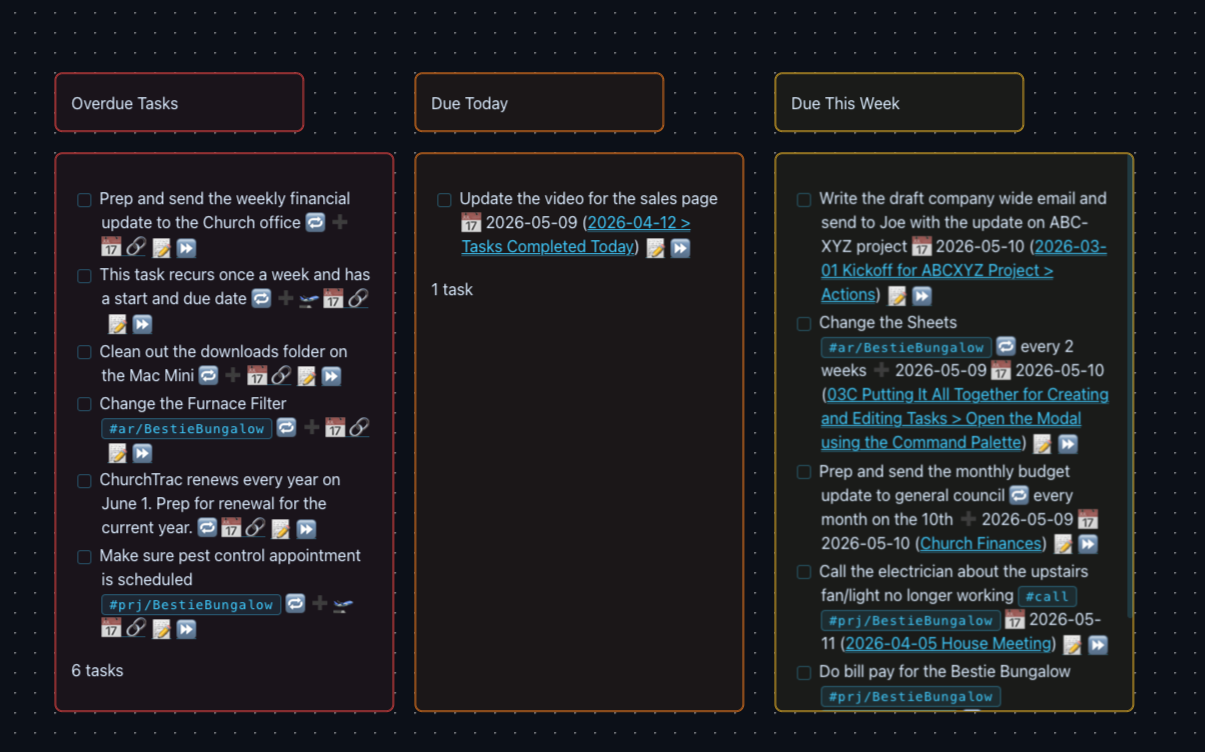
Simple Tasks Dashboard in Obsidian Canvas
5. Kanban Tools
The Tasks Community Plugin itself does not turn your tasks into a full Kanban system. Obsidian Bases does now have Kanban functionality (the video may say that it doesn’t as there was a significant gap between when I recorded the video and now publishing this). That said, there are several Kanban-specific plugins for Obsidian and one in particular I love and it works great with tasks. That is the Kanban plugin.
Kanban boards are an amazing way to see work and commitments visually. And, the Kanban plugin works GREAT with Obsidian Tasks.
Here is a simple board view showing a specific workstream. In the video, I walk through a little bit more about how it works.
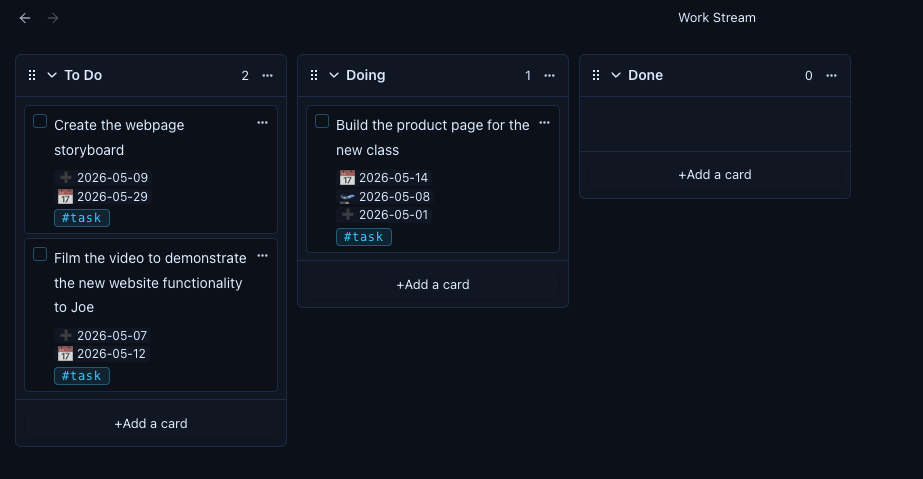
6. TaskForge
One of the big drawbacks of using Obsidian Tasks is that Obsidian isn’t amazing on a mobile device and if you are a person who wants to check and interact with your tasks on mobile, this can be a big stopper for using Obsidian Tasks.
The TaskForge app aims to take care of all of that. This is a native app that works on iOS, Mac, and Android. I’ve used it many times and really do love it. I don’t have as much need for it right now because I do most of my work sitting at my desk and have taken to sending tasks to myself using Whisper Memos and then entering them into my task system on my own when I’m back at my desk.
A Few Final Thoughts on the Series
This is in NO WAY an exhaustive list of everything that works well with the Obsidian Tasks Community Plugin. Other plugins like QuickAdd give you even more options to design workflows that work the way you want them to work.
What I hope this series has done is inspired you and given you confidence to build a task management system that works for you in Obsidian using the Tasks Community Plugin.
I hope the series has helped you understand the functionality of the Obsidian Tasks Community Plugin well enough that you can make wise choices for yourself.
Because Obsidian is at its best, in my opinion, when it gives you room to build around your own mind, your own workflow, and your own needs.
Closing
If you have followed along through all ten articles and videos in this series, thank you. I really appreciate you being here.
I would love to know what has been most helpful to you, what questions you still have, and what other Obsidian topics you’d like me to explore in future videos and articles. Leave a comment and let me know!
And if you are building your own task management system in Obsidian, I hope you will remember this:
You do not need a perfect system.
You need a trustworthy one.
You need one you will actually use.
And you need one that supports your real life.
I’ll see you again soon!