Obsidian Tasks Series, Part 7 - Dependencies
Welcome back to this mini series on the Obsidian Tasks Community Plugin. My intention with this series is to help you learn the functionality of the Obsidian Tasks Community Plugin so you can build a task management system in Obsidian that works for you. There is a YouTube video to accompany each article in this series, so feel free to check that out. The videos and articles roughly parallel one another.
As we begin, here is a rough plan for the series so you can see where we are and what's coming next. As we continue in the series, I'll come back and update links to future articles so you can easily navigate between the parts of the series.
Exploring Project Management with Obsidian Tasks ← You Are Here
Building Your Own System Using Obsidian Tasks
Backstopping Your Task Management System
Works Well with Obsidian Tasks Community Plugin
In our last article, we explored recurrence — how to set up tasks that repeat and the settings that control how they behave. Today, we're wrapping up the anatomy of a task with Obsidian Tasks' light project management features. After this, you'll have everything you need to start building your own task management system.
When One Task Depends on Another
In our day-to-day lives, there are many things we do where we can't do "Thing A" until we've done "Thing B." I can't put the groceries away until I buy the groceries. The task of putting the groceries away depends on buying the groceries first. We don't tend to worry about building complex task lists that lay these out as mini projects — we just know that we have to buy the groceries first and then we can put them away.
However, sometimes projects have lots of moving parts and you may need to keep all of those dependencies straight. You may also want to be able to identify what parts of the project you can work on now and what parts you can't work on yet. Some task managers — OmniFocus is probably the best example — even identify whether a specific project must be done serially (meaning you have to do step A, then step B, then step C) or in parallel (meaning you can work on steps A, B, and C all at the same time).
Traditional task manager tools like Todoist, OmniFocus, Things, and others have some ability to support both parallel and serial task management — and so does the Obsidian Tasks Community Plugin. Obsidian Tasks does not, on its own, support other views like Kanbans, calendars, or Gantt charts. In the last video in this series, we'll look at a few tools that work well with Obsidian Tasks, including a Kanban tool. However, if you need all of these different views and the ability to easily switch between them, you should outline those needs carefully and decide on the task management option that will work best for you given those needs. That type of multi-view planning goes beyond the scope of this series.
That said, for most of the projects we mere mortals deal with, the functionality in Obsidian will do what we need it to do. So let's take a look at what we can do.
Creating Task Dependencies
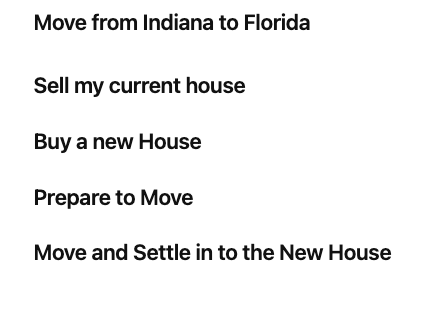
We're going to use a demo project I've set up for moving from one state to another — a complex task with lots of parts. I started by figuring out what I think of as the phases — or major buckets — of the project: selling my current house, buying a new house, preparing to move, and then actually moving and settling into the new house. I created each of these as headers in my project just to help me see things visually. This is purely aesthetic and has nothing to do with how the tasks are going to get managed.
I brainstormed several tasks in each section, which gave me the list below. I did spend some time trying to get these into a reasonable order in which they could be done.
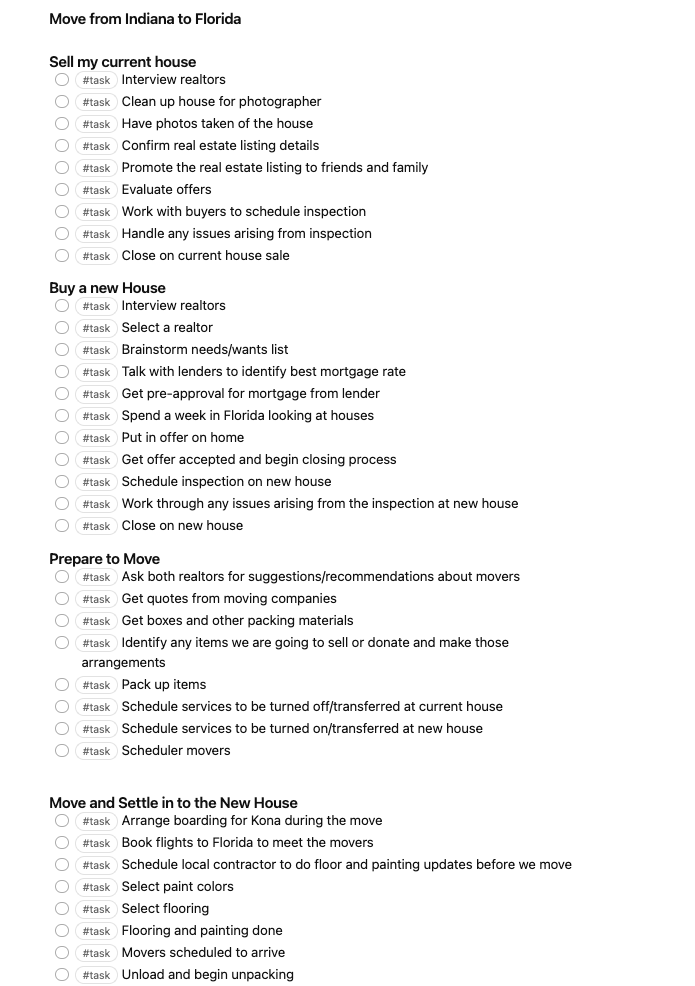
We're going to use this project to set up a few dependencies. Let's begin with the first one: selecting a realtor. We can't do that until we've interviewed realtors. So we can set that as a dependency.
Setting Dependencies Inline
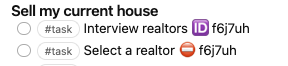
You can set dependencies in two ways. The first is to do it right inline. You want to be on the task that depends on another task being done first. In this case, "Select a realtor" can't be done until we interview realtors. Sitting on the "Select a realtor" line, you can begin typing "depends on" and the option for "depends on id" will pop up.
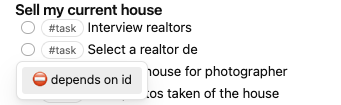
Select that option and a list of tasks that Obsidian thinks you might want to select from will appear.
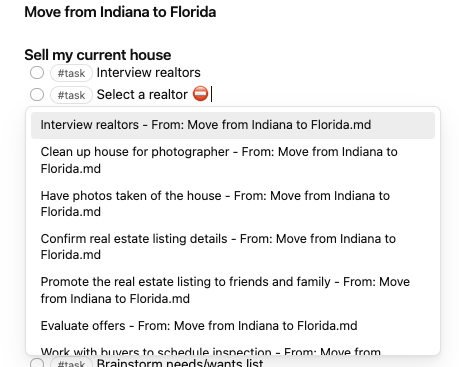
You may notice that this is simply pulling the list of tasks in the order you typed them. This is another nice advantage of spending a little time typing your list in a reasonable order/rearranging your list using the Move Line Up/Move Line Down feature before you start setting dependencies. Doing so will make selecting the right tasks a little easier. When I select "Interview realtors" from the list, an ID is added to the end of that task and that same ID is added after the "depends on" emoji — which is a red circle with a dash through it.
Setting Dependencies with the Create/Edit Task Modal
The second way to set a dependency is using the Create/Edit Task Modal. Let's set "Have photos taken of the house" to depend on the "Clean up house for photographer" task. To do this, open either task in the modal by clicking your mouse on the task line and using the command palette or a hotkey you've set to open the modal.
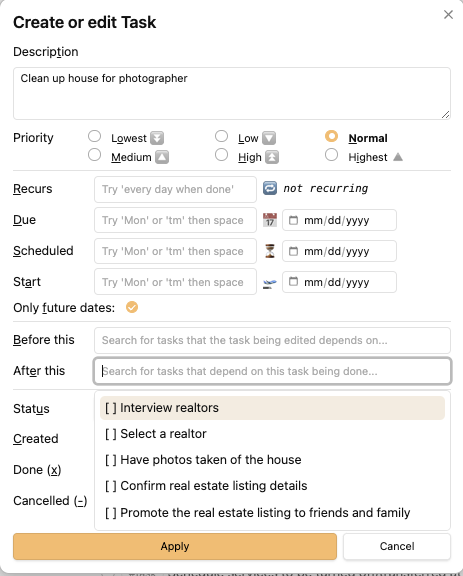
The modal allows you to set the tasks that are either before this one or after this one. With "Clean up house for photographer" open, I'll select "Have photos taken of the house" in the "after this" option — because it's asking what task happens after this specific task. Just like before, the ID and appropriate emojis get added to each task.

Tasks That Both Depend on and Block Other Tasks
The modal is especially useful for tasks that sit in the middle of a chain — things that depend on one task and block another. Let's look at "Evaluate offers." This can't be done until we've confirmed the real estate listing details, and we can't work with buyers to schedule the inspection until we've evaluated offers. Let's set both of these up in the modal.
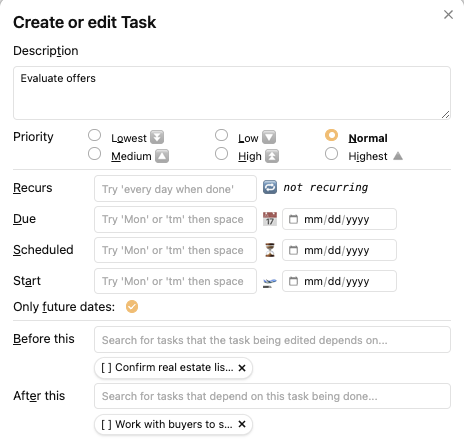
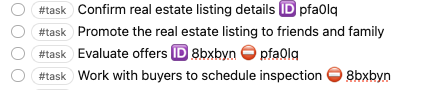
In the modal you can see that there is an option selected for "before this" as well as "after this." When we look at the tasks with their IDs, we can now see IDs associated with each of those relationships.
Multiple Dependencies
A task can also be dependent on more than one task, and one task can have multiple things that depend on it. For instance, it would be kind of silly to fly to Florida and spend a week looking for houses if I hadn't already identified the realtor I wanted to work with or decided what I'm looking for in a house. So the task of spending a week in Florida depends on both of those things being done first.
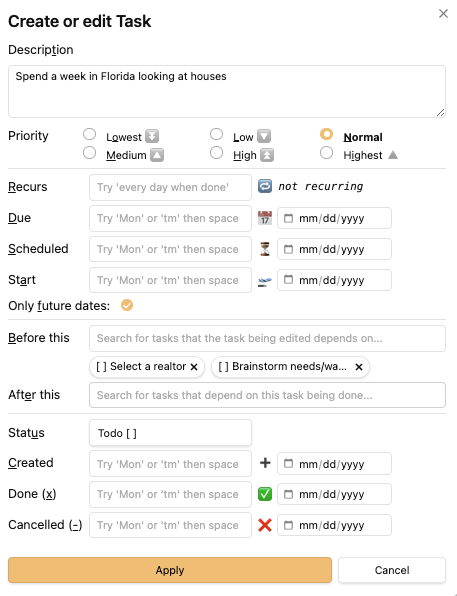
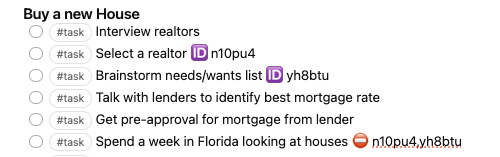
When we look at the task itself, we can see it now has two different IDs that it depends on. When multiple IDs are used, they are separated by commas.
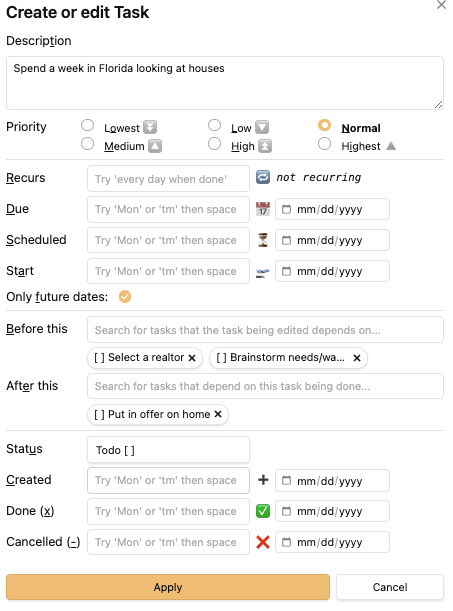
Let's say that in this example, spending a week in Florida is also what's blocking putting in an offer on a home. We can open up that task and set that as a dependency for putting in an offer.
A Few Words of Wisdom
How Many Blocks Is Too Many?
I have typically only used Obsidian Tasks with tasks where just one or two things are blocking another from getting done. According to the Obsidian Tasks User Guide, if you have more than four things blocking another task you may run into issues or errors. So as you are thinking about your specific use cases, consider that carefully.
Additionally — and this has nothing to do with the app itself — when I do productivity and software coaching with folks, they often fail to realize how much they actually can be working on. Put another way, be careful about blocking things that don't really need to be blocked. You want to use blocking sparingly when setting up your task systems. Only use blocking if something truly blocks another task.
A Note on Task IDs
Task IDs — those seemingly random six-character strings — that are created after the ID and blocking emojis have to follow a couple of rules. First, they should be unique across the whole vault. No two tasks should have the same ID. Second, they must be made up of one or more allowed characters: lowercase and uppercase letters, numbers, underscores, and hyphens.
In this article, I've demonstrated simply allowing Obsidian to set the IDs. However, you could create your own ID naming structure and use that across your vault if you were so inclined. You can learn more about IDs on the Task Dependencies page of the Obsidian Tasks User Guide.
If you do want to assign your own IDs, you can do that using the emoji or the auto-suggester — just type "ID" on any task and the emoji will appear. If you'd like Obsidian to generate a unique ID for you, use the auto-suggester to add the ID emoji and then select the option to generate a unique ID, which will create that six-character string for you.
Querying Blocked and Is Blocking Tasks
Just as we've seen throughout this series, the Obsidian Tasks query language has a robust set of options to allow us to find tasks that meet a wide array of parameters. Tasks that are being blocked by other tasks as well as task that are blocking other tasks are just another example of this.
To help demonstrate this, I set up a second project for writing a book. In this project, every taks has IDs and dependencies.
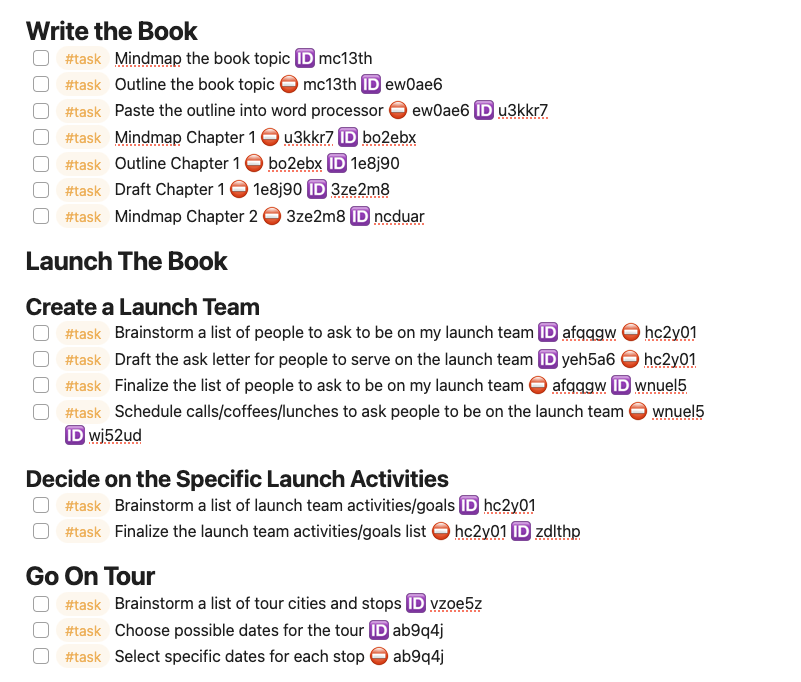
The first query I wrote for this project was a simple query that shows what is not blocked in this specific page. Here is what that query and its output looks like.

If you want to copy the text of that query, it is:
```tasks
# finds all tasks in the Write and Promote my book project that are not being blocked by other tasks

filename includes Project Demonstrate Dependencies - Write and Promote My Book
not done
is not blocked
short mode
```
As you can see from the query, I've simply used the "is not blocked" command to identify the tasks on this specific page of the vault that are not blocked by other tasks. If you were using this across a whole folder or a whole vault you'd simply update the filename link to be reflective of where you're searching.
The other command with recurrence is is blocking. This command is useful to see where you need to focus your energy in order to get a project from stuck to moving well.
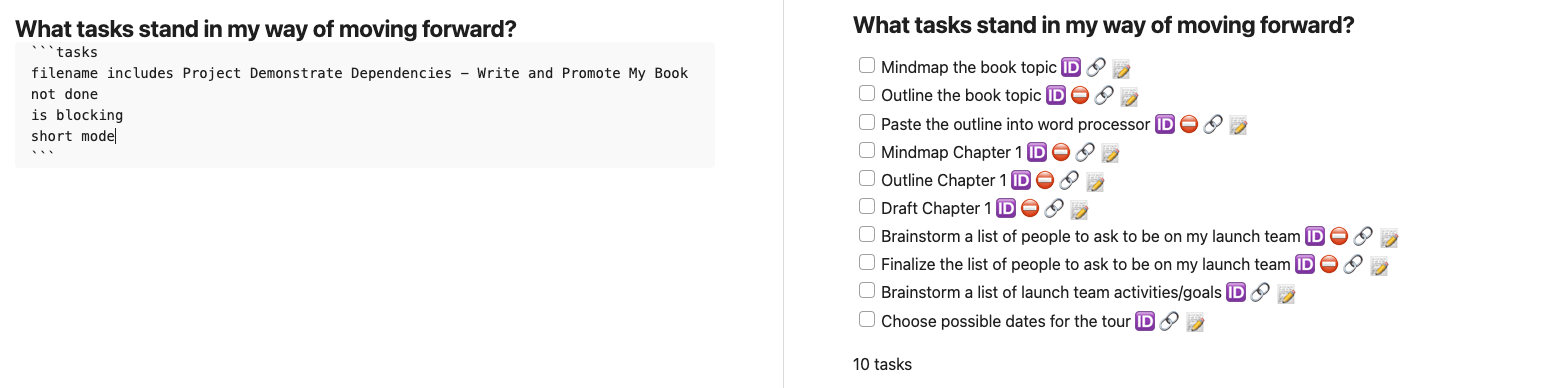
It’s the same query code as above, but with is blocking in place of is not blocked!
When used together with all the other query language you've learned throughout the series, you can write specific queries that help you develop a system that will work for you.
What's Next
With dependencies covered, we've now walked through the full anatomy of a task in the Obsidian Tasks Community Plugin. In the next article, we'll take everything we've learned and use it to build your own task management system. That's where it all comes together.
👩🏻🤝👩🏽 Join a community of people seeking to get better at being authentically themselves — and get access to everything I write and publish early as well as bonus content and more on Circle. You can have Free Guest Access
or access to a year of Obsidian Office Hours (Small Paid Fee)
📰 Want to make sure you never miss a story from me? Subscribe to my newsletter. I send out a fresh new article and do a round up of everything I published that week. It is released for free every Monday.
Book a free, no obligation 30 minute coaching call to see if we're a good match for productivity, career, or financial coaching.
Visit my website: https://www.monarchstrategiesllc.com